

Introduction
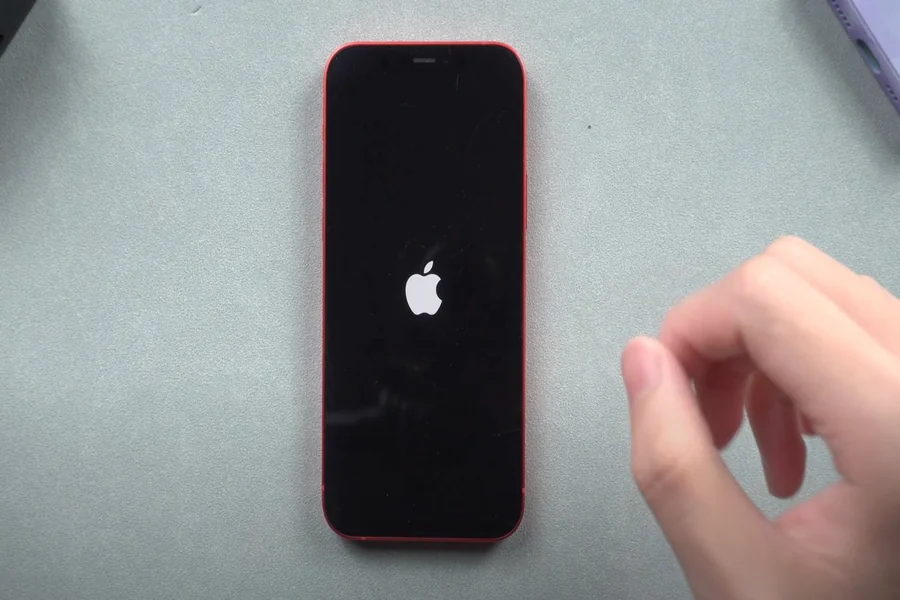
How To Fix iPhone Stuck on Apple Logo is one issue that most iPhone users dread when they have updated their phones or when they have gone through an unforeseen crash. You switch on your phone, and it should operate as usual but on the contrary, your phone freezes at the stage of the Apple logo, and stops there. This may be frustrating and the positive aspect is that it can be corrected most of the time without having to go to a professional.
In the majority of instances, the problem is due to software bugs, failed updates or damaged system files. It may also be associated with hardware issues, however, this is less frequent. This guide will teach you simple and easy to follow steps to revive your iPhone through proven and safe steps.
The reason why your iPhone is stuck on the Apple Logo
It is always good to know what is the source of the problem and then you can jump into solutions. iPhone stuck on the Apple logo normally indicates that the system is unable to boot to its full potential.
A failed iOS update is one of the most prevalent causes. In case your phone runs out of power or the internet connection is unavailable when updating, there is the possibility of the system being incomplete. The second reason is the restoration of a damaged backup, which injects damaged files into the system.
This may also be a result of jailbreaking. Jailbreaking alters system files and therefore, any minor mistake can leave your phone without any chance of booting. Also, hardware issues like a broken logic board or a broken battery can also lead to similar symptoms.
Finding the root cause can assist you in selecting the appropriate solution rather than resorting to random solutions.
Force Restart: The simplest and quickest fix
The simplest method to resolve this problem is by restarting it forcefully. This technique does not delete your information and frequently fixes minor bugs.
In the case of iPhone 8 and beyond, hold the Volume Up button then the Volume Down button one after the other and then press and hold the Side button until the Apple logo fades and appears once again. In the case of iPhone 7 and 7 Plus, hold the Volume Down button and the Power button together. In older models, press the Home and Power buttons together.
A force restart is an option that will reboot the system and remove temporary errors. Assuming that your iPhone was stuck because of a small software malfunction, then this technique will restore its functionality in a second.
In case it fails, it is all right. And there are a few more effective solutions to be tried.
Restore or Update with Recovery Mode
In case a force restart does not resolve the issue, then the next course of action is Recovery Mode. This is the procedure that enables you to install or upgrade iOS through a computer.
Begin by attaching your iPhone to a computer by means of a USB cable. Depending on your system, open iTunes or Finder. Next, simply use the same button presses as you would with a force restart and press the buttons until you see the Recovery Mode screen.
When your device is recognized, you will have two choices, your Update and Restore. Choose Update first. This will restore iOS without losing your data. Should the update not be successful, then you have an option of Restore that will erase your device and then install a new version of iOS.
One of the surest methods of correcting more serious system problems is Recovery Mode, which does not require the use of complicated tools.
Correction of the Problem with DFU Mode
Recovery Mode failed, then the next step solution is DFU (Device Firmware Update) Mode. It is more sophisticated yet really efficient.
DFU Mode bypasses the operating system, and it enables your computer to interact with the device firmware directly. This renders it applicable in repairing serious software problems.
In order to get into DFU Mode, you need to connect your iPhone to a computer. Hold the Power button a few seconds, press and hold the Volume Down button still holding the Power button. In a couple of seconds, release the Power button and hold the Volume Down button until the screen remains black and the device is recognized by your computer.
When in DFU Mode, you can restore your iPhone using iTunes or Finder. Remember that it will cause loss of all data hence should be the last resort after trying other means.
In the case of Hardware Problems
In case all the software fixes have failed, there are possibilities that the problem is hardware-related. This is not prevalent but it can still happen.
Your iPhone may fail to boot due to a defective battery, internal component damage, or due to water damage. Apple logo can be seen in such cases but the system does not fully boot.
Other indicators may also be present, including excessive heat, noises, or the complete lack of response of the device. These are signs that it is not just a software problem.
At this stage, one should call Apple Support or go to an authorized service center. Attempting to troubleshoot failure of hardware can only complicate matters when you are not a seasoned user.
To avoid this problem in the future, tips
It is better to prevent than to cure. One or two simple habits will prevent you coming into this trouble in the future.
Always make sure that your battery is fully charged whenever updating iOS. It is advisable not to cut updates or switch off your device in the process. Frequently save your information with iCloud or a computer to make sure you do not lose valuable information in case of a problem.
It is also prudent not to jailbreak your phone as that will expose it to the possibility of instability in the system. The latest apps and iOS version can also assist in keeping the performance going smoothly.
These are some of the simple practices that you can observe in order to minimize the chances of experiencing this problem again.
Final Thought
A stuck Apple logo can be a very distressing experience, but it is seldom the end of your computer. Starting with a basic force re-boot and going as far as the DFU Mode, there are several ways to solve the problem based on its cause.
Begin with the simplest solution and proceed to more complex ways when necessary. Above all, do not panic, and proceed step-by-step. Your iPhone will be back on track in no time with the right approach.
FAQs
Why is my iPhone stuck on the Apple logo?
This usually happens due to software issues like failed updates, corrupted files, or system crashes.
Will a force restart delete my data?
No, a force restart does not erase your data and is completely safe to try.
What is Recovery Mode used for?
Recovery Mode allows you to update or restore your iPhone using a computer to fix system problems.
Is DFU Mode better than Recovery Mode?
DFU Mode is more advanced and can fix deeper issues, but it also erases all data from your device.
How long should my iPhone stay on the Apple logo?
Normally, it should only stay for a few seconds during startup. If it lasts more than a few minutes, there may be a problem.
Can a hardware issue cause this problem?
Yes, although rare, hardware issues like battery or internal damage can cause the iPhone to get stuck on the Apple logo.
Should I go to a technician if nothing works?
Yes, if all troubleshooting steps fail, it’s best to seek help from Apple Support or a certified technician.
